Screenshot and pin tool for macOS · 1.6 MB

ScreenshotDrag any area, or hover to snap to a window PinKeep the screenshot floating above every window

Press ⌃⌥A to take a screenshot and mark it up with arrows, text and mosaic. Press ⌘T to pin it on screen, or ⌃⌥S to pin the image or text on your clipboard.

v1.0.1 · macOS 14 or later · Apple silicon and Intel
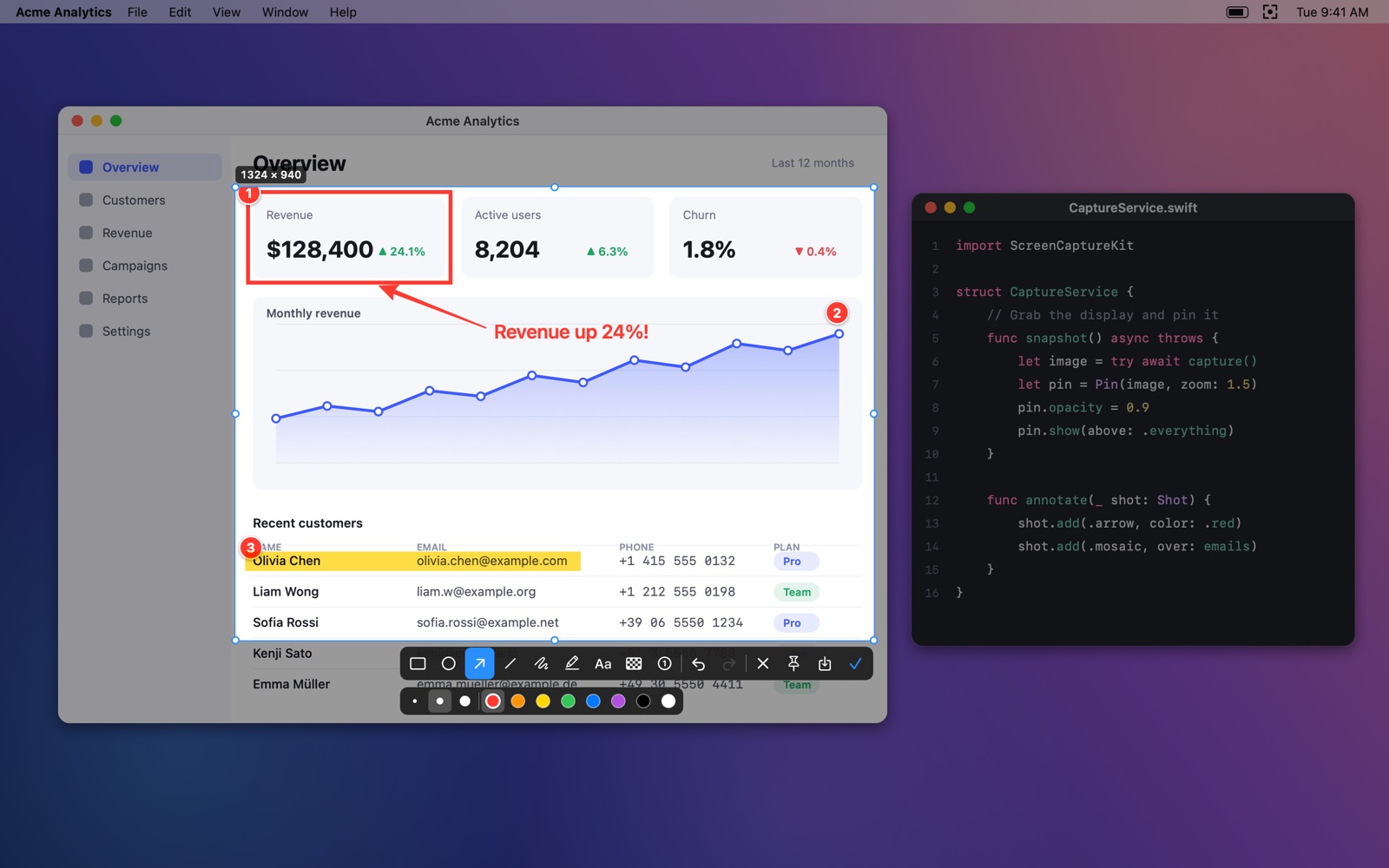
Annotating a screenshot in FreeShot with a red box, an arrow, text and numbered markers
  • 1.6 MBdownload size
  • 9annotation tools
  • 50pins kept in history
  • 0network requests
Features

A screenshot and a pin are each one shortcut away.

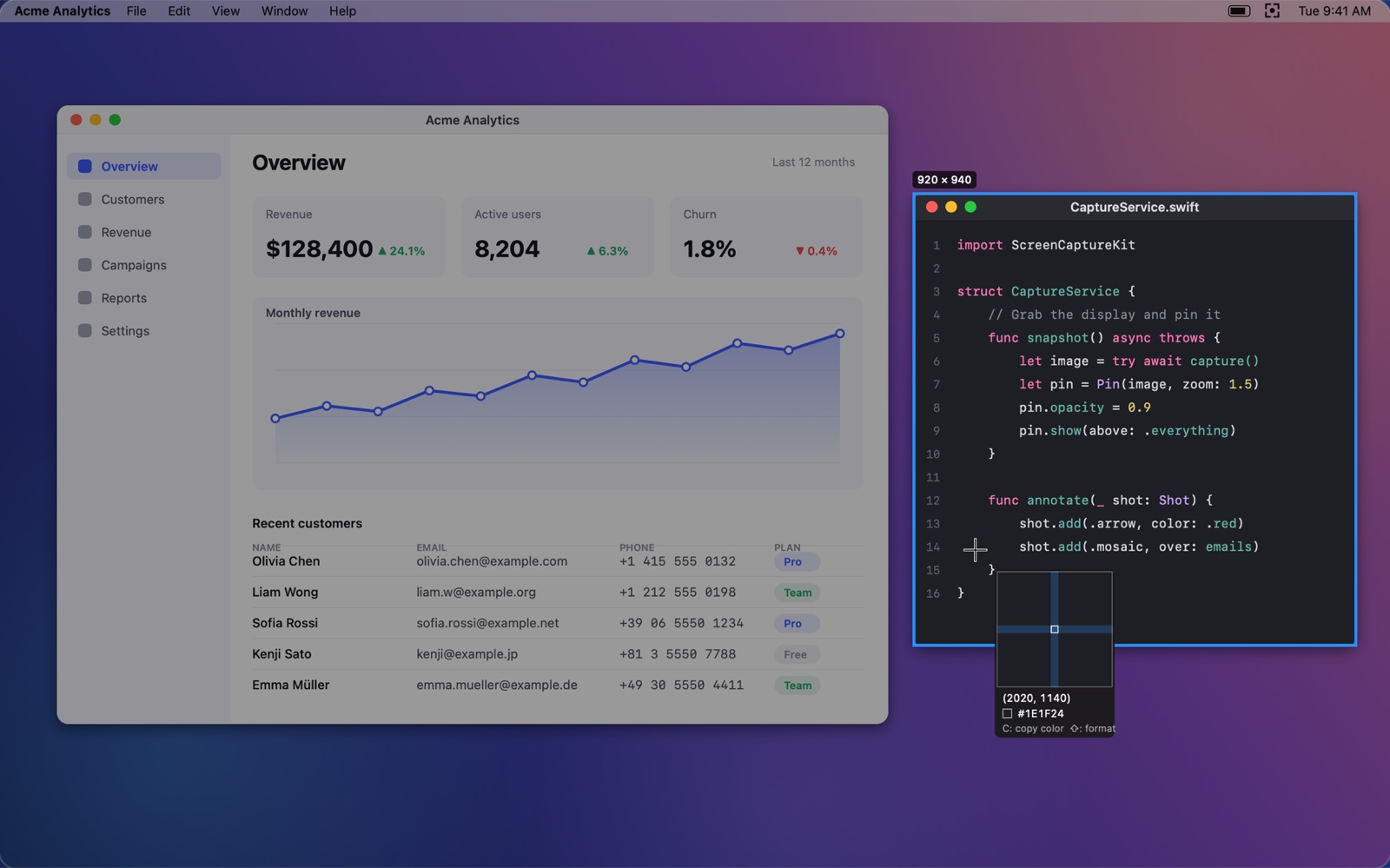
Hovering snaps the selection to a window, with the pixel magnifier and color value beside the pointer

Screenshot

Press the shortcut and the screen freezes. Hover to snap to a window, or drag to select any area. It works across multiple displays.

  • A pixel magnifier for edges accurate to 1 pixel
  • Press C to copy the color under the pointer
  • Return copies to the clipboard, ⌘S saves a file
⌃⌥Astarts a screenshot
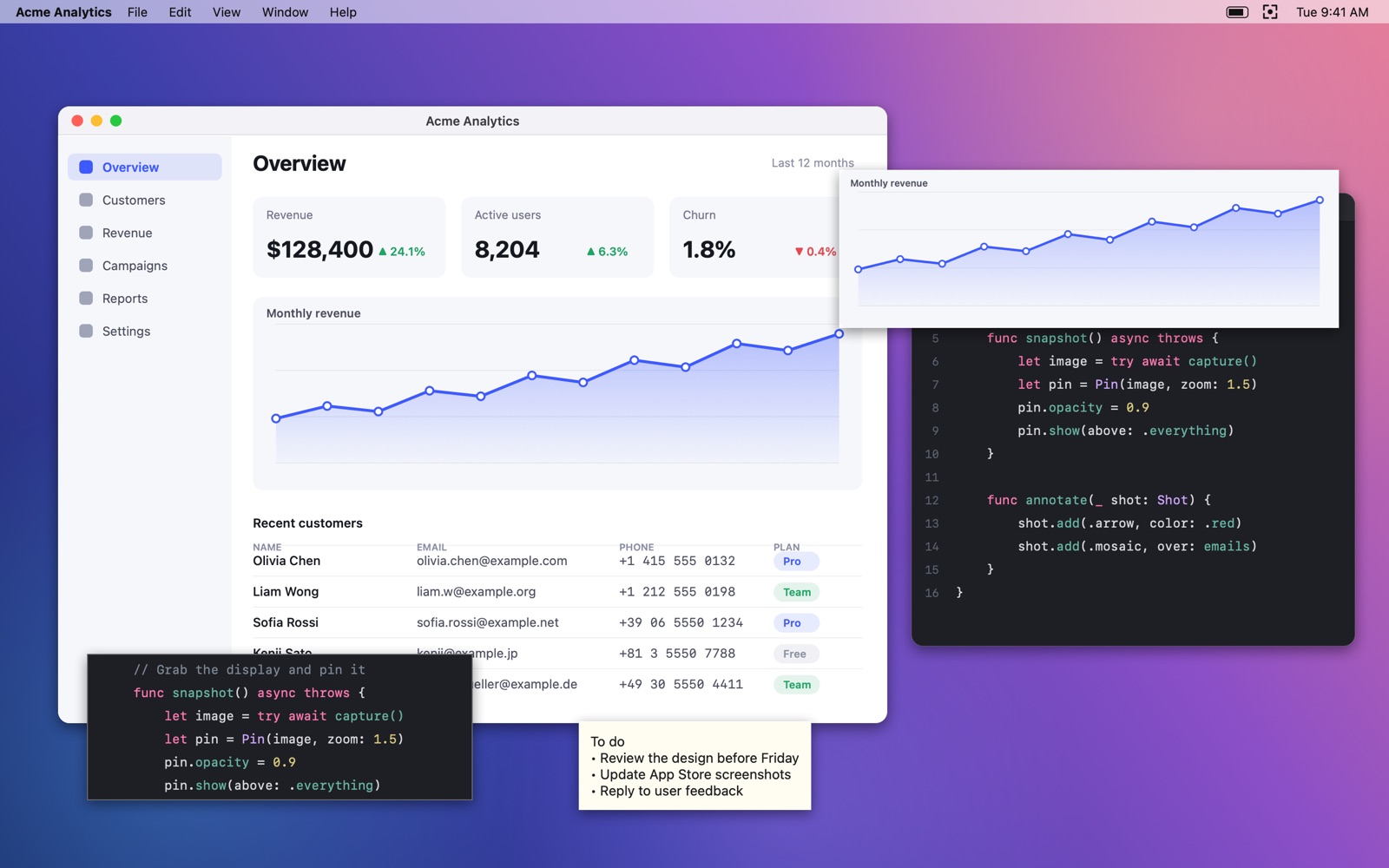
A chart, a code snippet and a to-do note pinned above other windows

Pin

Press ⌘T after a screenshot and it floats above every window. Write code or fill in a form against it without switching windows.

  • Scroll to zoom, ⌥ and scroll to change opacity
  • Turn on click-through to use the windows underneath
  • Right-click to rotate, flip, copy or save a pin
  • Pin history keeps your last 50 pins to pin again
⌘Tpins the screenshot you just took
⌃⌥Spins the image or text on your clipboard
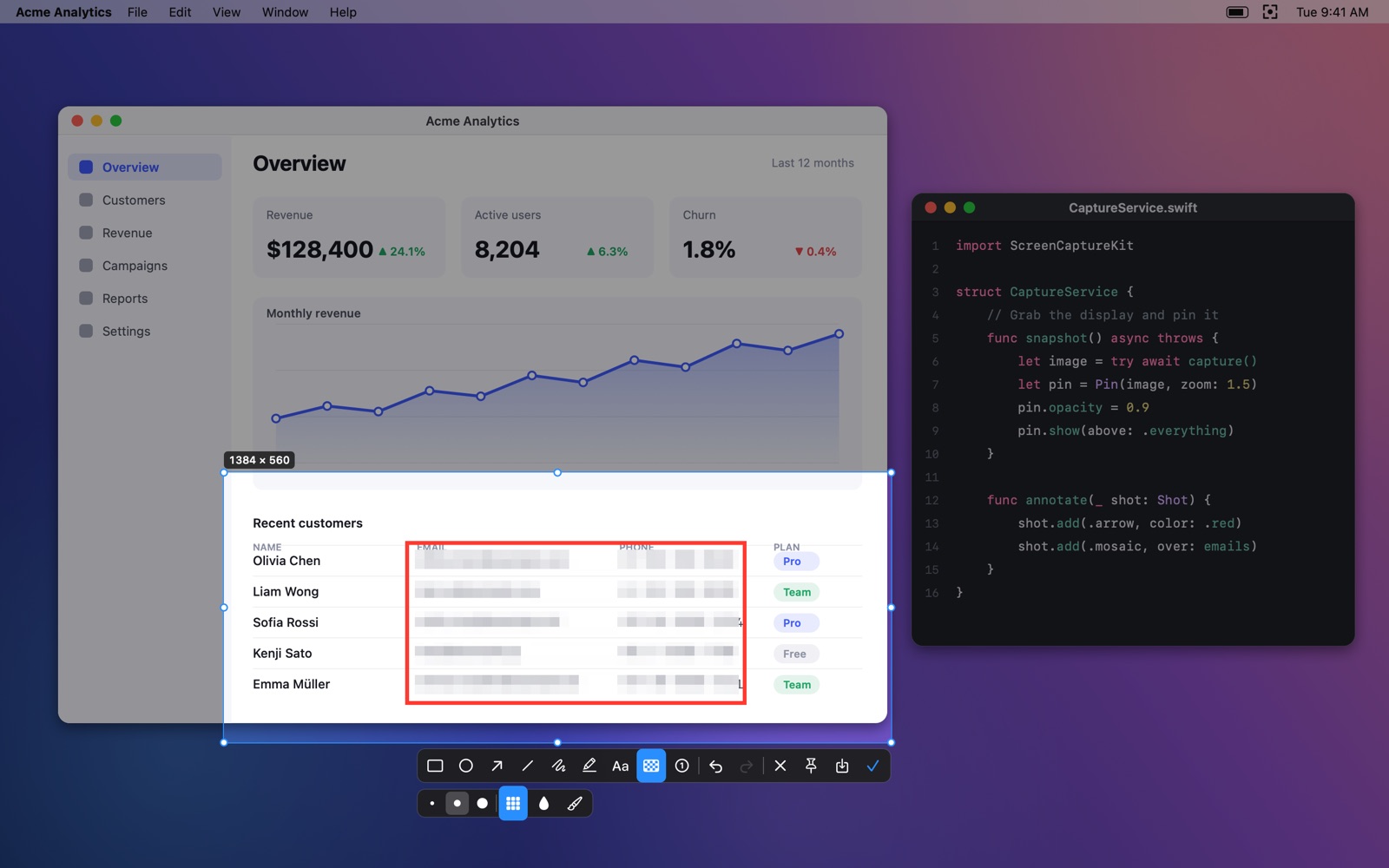
Emails and phone numbers in a table hidden with mosaic inside a red box

Annotate as you go

Screenshots and pins can both be marked up: draw arrows, text and numbered steps, and hide emails and phone numbers with one swipe of mosaic.

  • RectangleR
  • EllipseE
  • ArrowA
  • LineL
  • PenP
  • HighlighterH
  • TextT
  • MosaicM
  • NumberN

Made a mistake? ⌘Z undoes it, ⇧⌘Z redoes it. Press Space on a pin to annotate it.

Shortcuts

Keep your hands on the keyboard.

The default ⌃⌥A and ⌃⌥S stay clear of common app shortcuts, and you can change them in Settings › Shortcuts.

Screenshot

  • Take a screenshot⌃⌥A
  • Copy to the clipboard↩or⌘C
  • Save to a file⌘S
  • Undo / Redo⌘Z/⇧⌘Z
  • Copy the color under the pointerC
  • Reselect / CancelRight-click/Esc

Pin

  • Pin the screenshot you just took⌘T
  • Pin the clipboard⌃⌥S
  • ZoomScrollorPinch
  • Change opacity⌥Scroll
  • MoveDrag
  • Annotate the pinSpace
  • CloseDouble-clickorEsc
  • Copy, save, rotate, click-throughRight-click
  • Pin a recent one againMenu bar › Pin History
Privacy

Your screenshots stay on your Mac.

A capture is processed in memory on your Mac and discarded when you finish, unless you copy, save or pin it.

Read the full privacy policy
  • No network

    The app makes no network connections and uploads nothing.

  • No analytics

    No analytics, ads or crash reporting, and no third-party services.

  • No account

    There is nothing to sign up for or log in to. Install it and go.

  • Sandboxed

    Screenshots are saved only where you choose. Pin history stays in the app’s own container.

FAQ

Things you might run into after installing.

If the answer isn’t here, tell us.

Open an issue on GitHub
macOS says FreeShot can’t be opened
The direct download is not notarized by Apple, so the first launch has to be allowed by hand: open FreeShot once, then go to System Settings › Privacy & Security and click “Open Anyway”. On macOS 14, Control-click the app and choose Open.
The screenshot is black, or FreeShot asks for permission
Open System Settings › Privacy & Security › Screen Recording (“Screen & System Audio Recording”), turn on FreeShot, then quit and reopen the app.
I installed it, but where is the app?
FreeShot lives in the menu bar; its icon is a viewfinder. Opening it again from Launchpad or Finder shows its Settings.
A shortcut doesn’t work
Another app may be using the same shortcut. Pick a different one in Settings › Shortcuts.
A pin ignores the mouse
Click-through is on. Click the menu bar icon and choose “Turn Off Click-Through for All Pins”.

Take one right now and pin it.

v1.0.1 · 1.6 MB · macOS 14 or later · Apple silicon and Intel

Download for Mac

The first launch has to be allowed once in System Settings. The steps are in the FAQ above.